SalonRenter. Renting beauty space made easy.
Find Space
Find JobsSalons for Sale
Rent calculatorHelpBlogAboutContact
List Your Space?
SalonRenter

Renting beauty space made easy

Popular Cities

  • Cary, NC
  • St. Louis, MO
  • Dallas, TX
  • Austin, TX
  • Charlotte, NC
  • Raleigh, NC
  • Atlanta, GA
  • Chicago, IL
  • San Antonio, TX
  • Plano, TX

Space Types

  • Salon Suites
  • Booth Rentals
  • Chair Rentals
  • Entire Salons

For Professionals

  • Hair Stylists
  • Barbers
  • Nail Techs
  • Estheticians
  • Lash Artists
  • Massage Therapists

Company

  • About
  • Contact
  • Help
  • Pricing
  • Meet Our Partners
  • Developers
  • Refer and Earn
  • Search Rentals
  • List Your Space
  • Blog
  • Favorites
  • Rent calculator
  • Saved Searches
  • Find Jobs
  • Jobs on SalonHires
  • Salons for Sale

Legal

  • Privacy
  • Cookie Policy
  • Terms
  • Messaging Policy
  • DMCA
  • Sitemap
  • Create Your Profile
  • For Salon Owners
Salon Renter LLC1323 SE 17th St. PMB 98194Ft. Lauderdale, FL 33316

FacebookInstagramLinkedInYouTube

© 2026 SalonRenter. All rights reserved.

We use cookies for analytics and, if you allow it, advertising. Session replay turns on only after you accept. Privacy Policy

  1. Salon Owners
  2. Getting Started
  3. How to Create Your Salon Renter Account

How to Create Your Salon Renter Account

Register as a Location Owner, tick the reCAPTCHA checkbox, and confirm the verification email.

Last updated October 24, 2026

Walk through a short decision guide

Create an owner account

Owners list spaces with a Location Owner account. Beauty Pro is the account type for professionals who are looking for a chair or room. If you pick Beauty Pro, you will not get the owner tools for listings and billing.

A full comparison is in Beauty Pro vs Location Owner.

Steps

  1. Go to salonrenter.com and click Register.
  2. Choose Location Owner.
  3. Enter your name, email address, and a password. Google sign-in is also available.
  4. Tick the reCAPTCHA v2 I'm not a robot checkbox. The form will not finish until that box is ticked.
  5. Submit the form. We send a verification email to the address you entered.
  6. Open the email and confirm your account. Check the spam and promotions folders if it is not in the inbox.
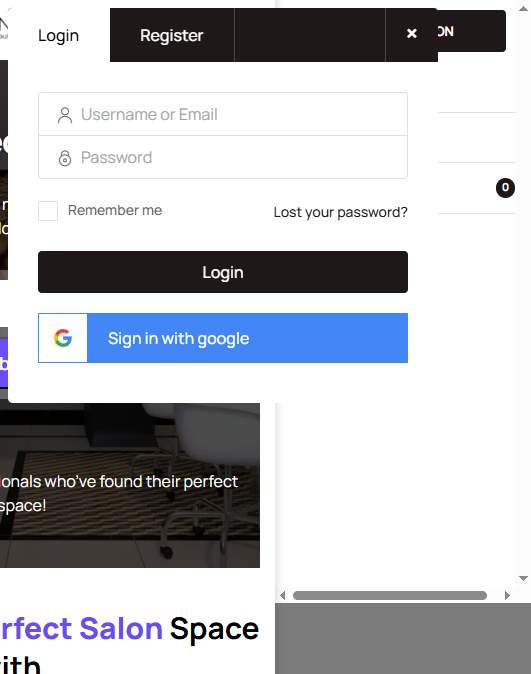
Screenshot: Register form with Location Owner selected and the I'm not a robot checkbox
Login and register modal

If the checkbox does not appear

  • Disable ad blockers or strict privacy extensions, then reload the page.
  • Leave private or incognito mode and try a normal window.
  • Try another browser.
  • If the box still does not render, email help@salonrenter.com and include the email you want on the account. We can help you finish registration.

More detail: Verification email and the captcha checkbox.

No verification email?

Check spam and promotions, then see You did not receive a confirmation email.

Once the account is confirmed, you can create your first listing.

Was this article helpful?

Related articles

Beauty Pro vs Location OwnerVerification Email and the Captcha CheckboxYou Did Not Receive a Confirmation EmailHow to Create Your First Listing

Still stuck?

Contact support and we will know which guide you already read.

Contact support